DSCI 522 Lecture 5
Non-interactive scripts
iClicker: How are you getting along with Docker?


🧐 Some questions from last week…
Q: “I did everything as instructed, why do I still get bugs?” 🥲
- Bad news: 🐛 are inevitable
- Debugging is one of the most important skills to have as a data scientist
- Good news: Enemies of 🐛:
- Documentation, attention to details, perseverance, clean code, testing…
Q: “conda is not locking my pip packages!” 😱
- Solution:
pip installpackages inside of your Dockerfile- (optional but recommended) Still add version numbers for your pip packages in
environment.ymlfile for documentation purposes
- (optional but recommended) Still add version numbers for your pip packages in
# build on top of template of minimal notebook
FROM quay.io/jupyter/minimal-notebook:afe30f0c9ad8

# copy all conda environment dependencies
COPY conda-linux-64.lock /tmp/conda-linux-64.lock

# conda install all the other packages
RUN mamba update --quiet --file /tmp/conda-linux-64.lock \
    && mamba clean --all -y -f \
    && fix-permissions "${CONDA_DIR}" \
    && fix-permissions "/home/${NB_USER}"

# install openai using pip
RUN pip install openai==1.57.0
Q: “The data I’m currently using do not have any missing data, why do I still need to do data validation?”
- What about your future data?
- We set up the data validation pipeline so that we can easily validate new data, and get warnings if there are missing values in the future.
Q: “Why do we need to standardize repository structure?”
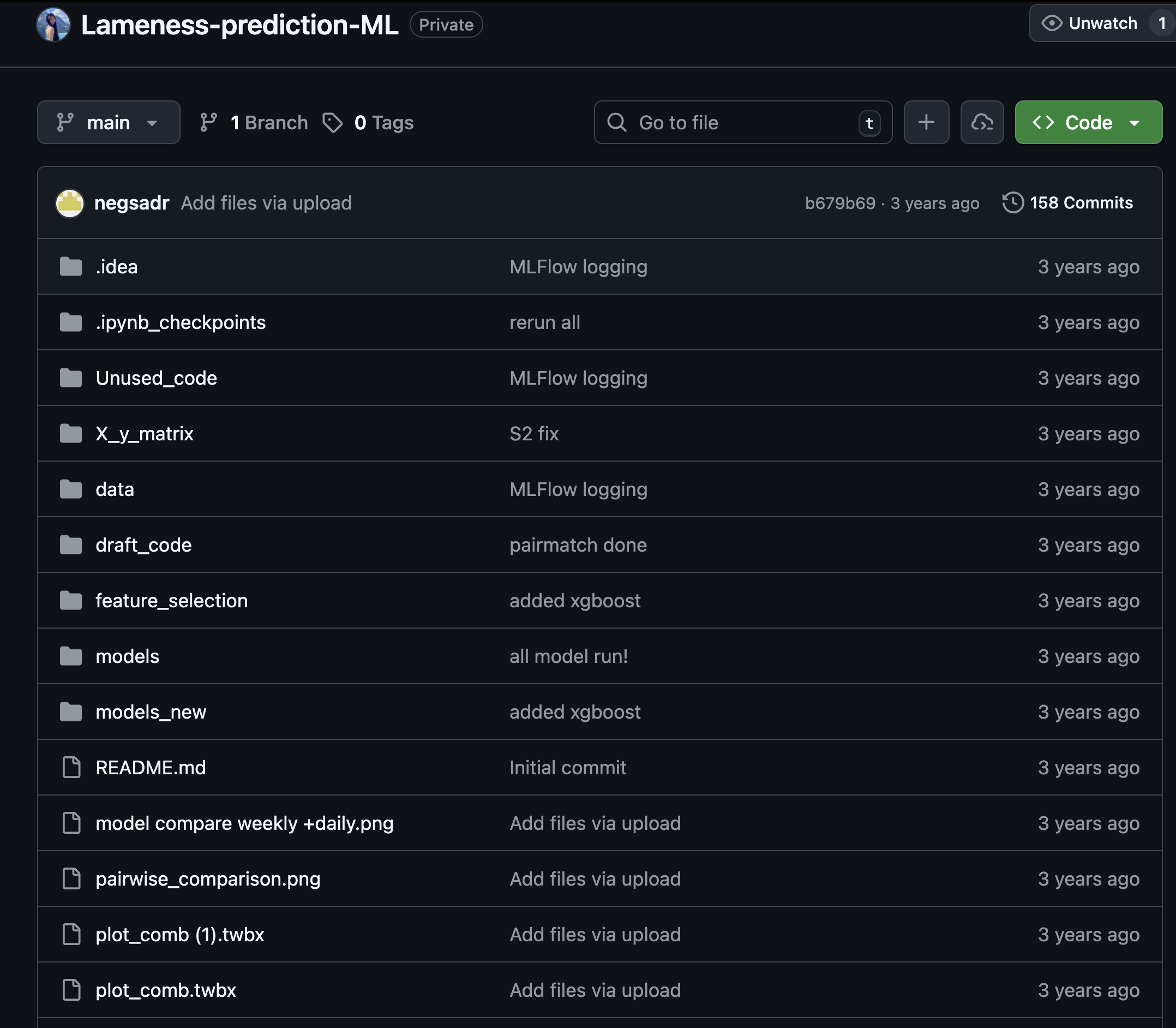
🫣 Here is a shameless bad example of what happens when you don’t use standardized, well-organized repository structure:
iClicker: Why do we use docker-compose file?
-(A) To create and customize our own docker
-(B) To easily launch and stop our docker container in one command
-(C) To document the packages we used so that we can easily share with others
-(D) To prepare for publishing our docker image on Docker Hub
-(E) To make our life harder 🤷♀️
Recap: Why do we need all of these? 🤯
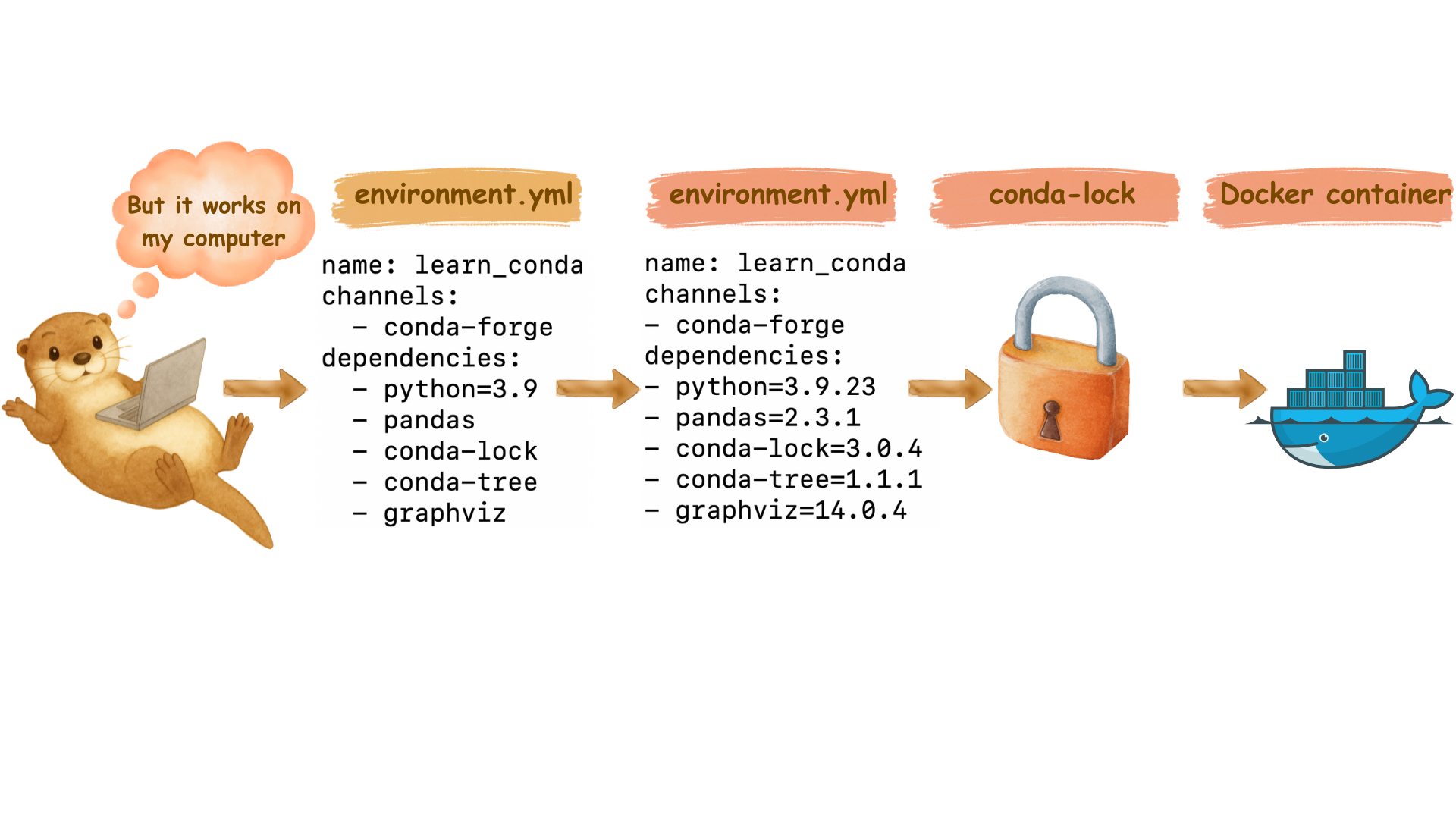
Image generated by OpenAI GPT-5 and Canva
“I want more functionality in the docker container!”
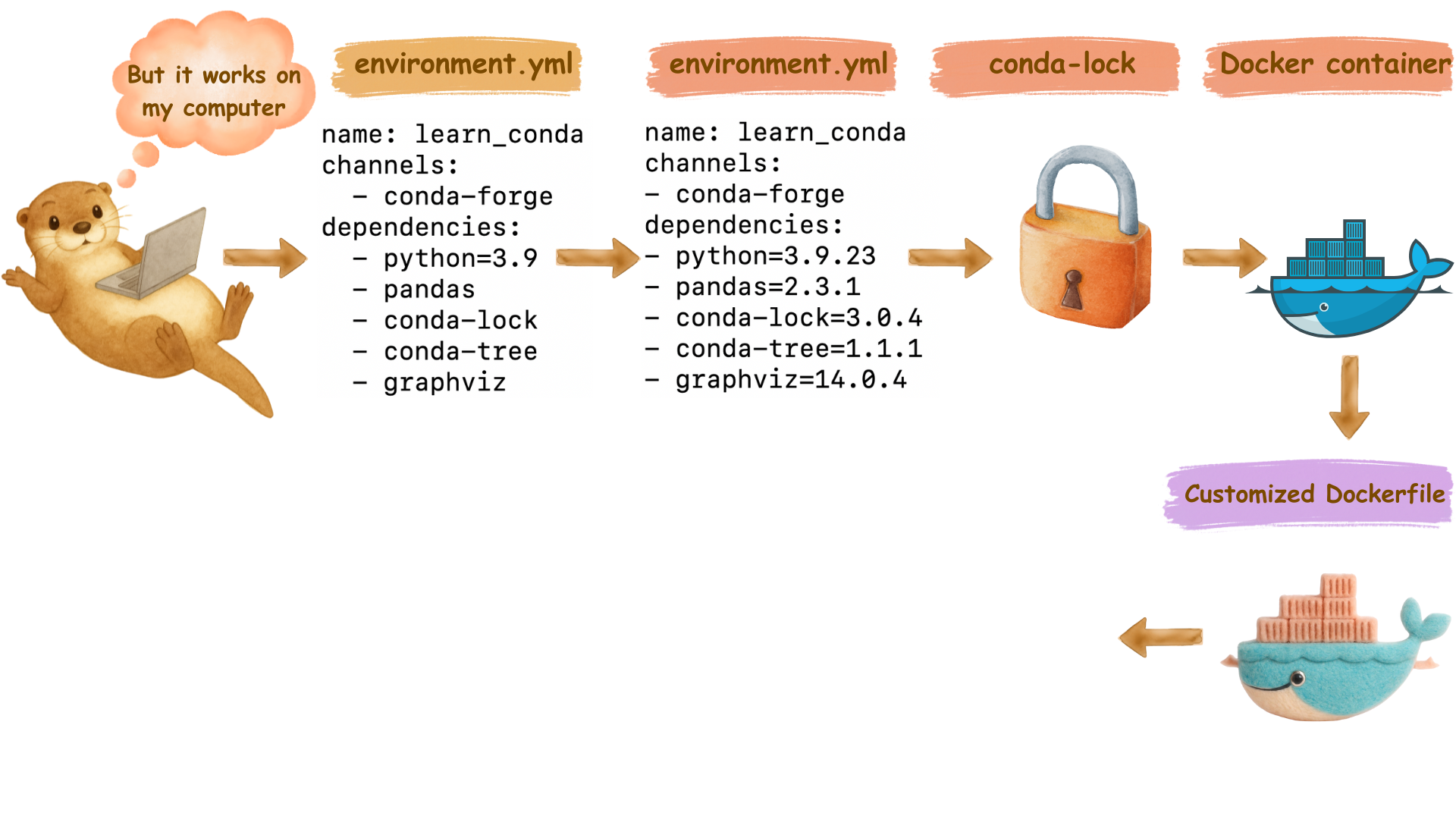
Image generated by OpenAI GPT-5 and Canva
“docker run command is too LONG!”
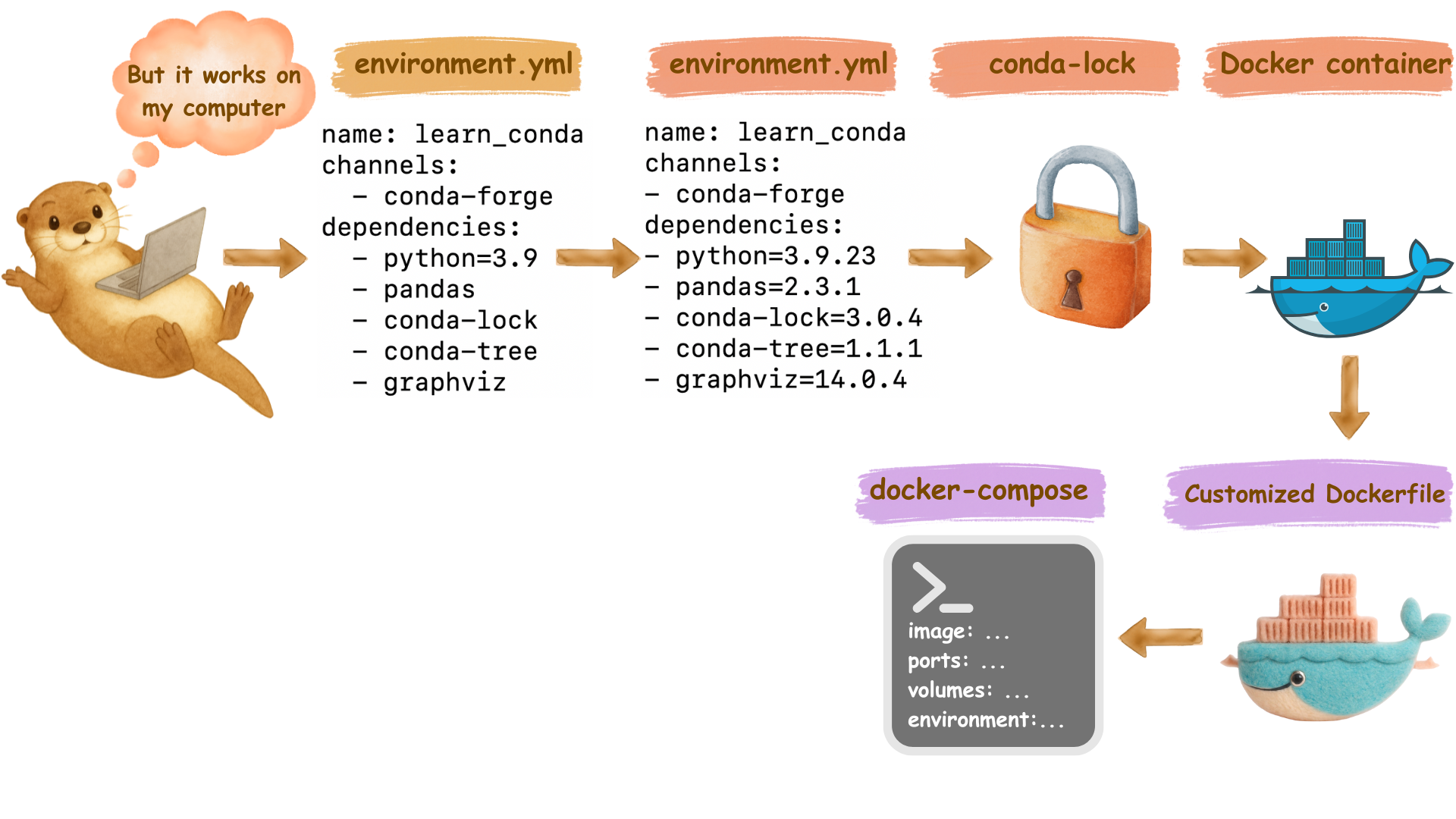
Image generated by OpenAI GPT-5 and Canva
“I am tired of typing the same sequence of commands over and over again!”
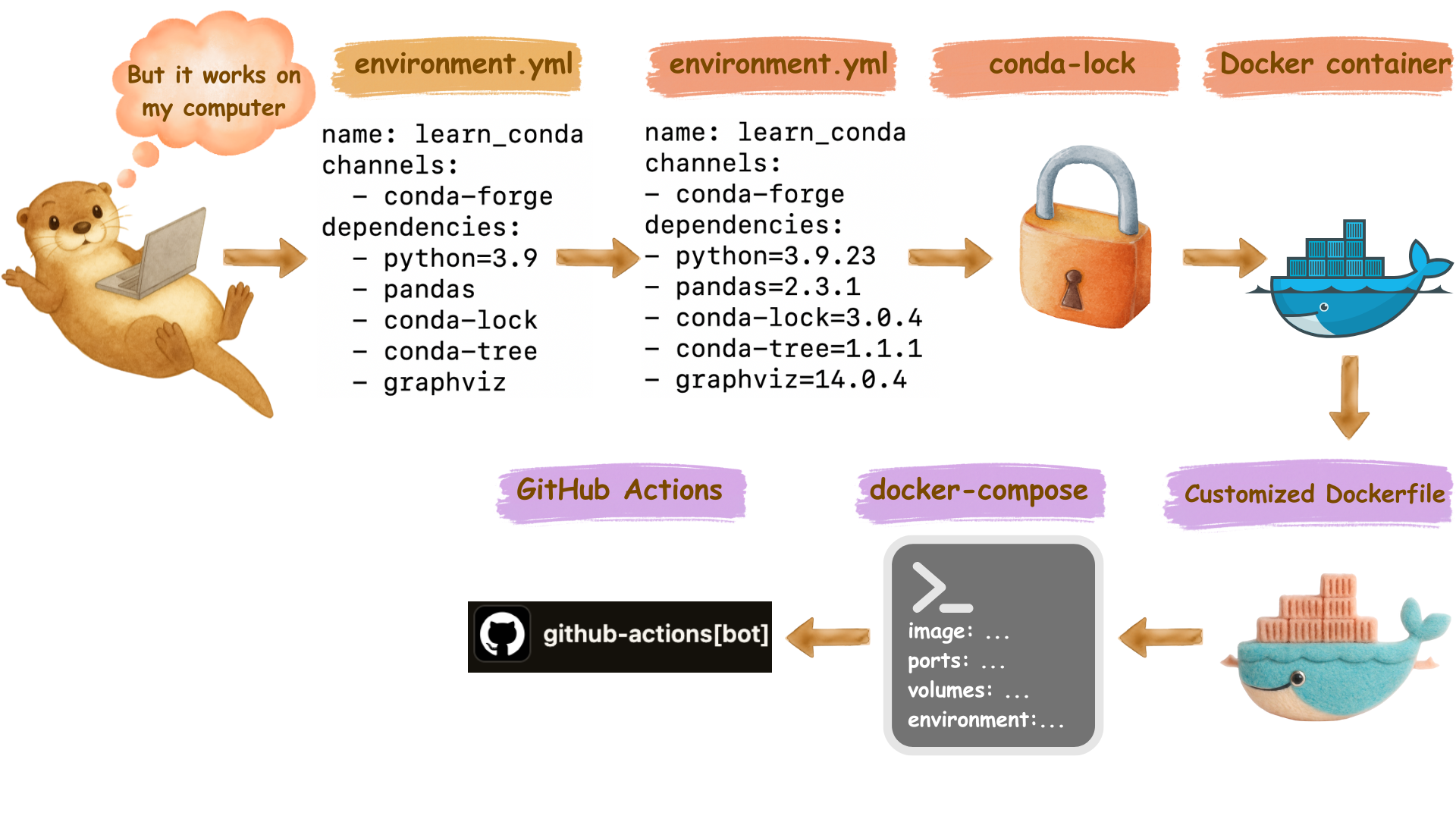
Image generated by OpenAI GPT-5 and Canva
“I want others to easily use my docker container!”
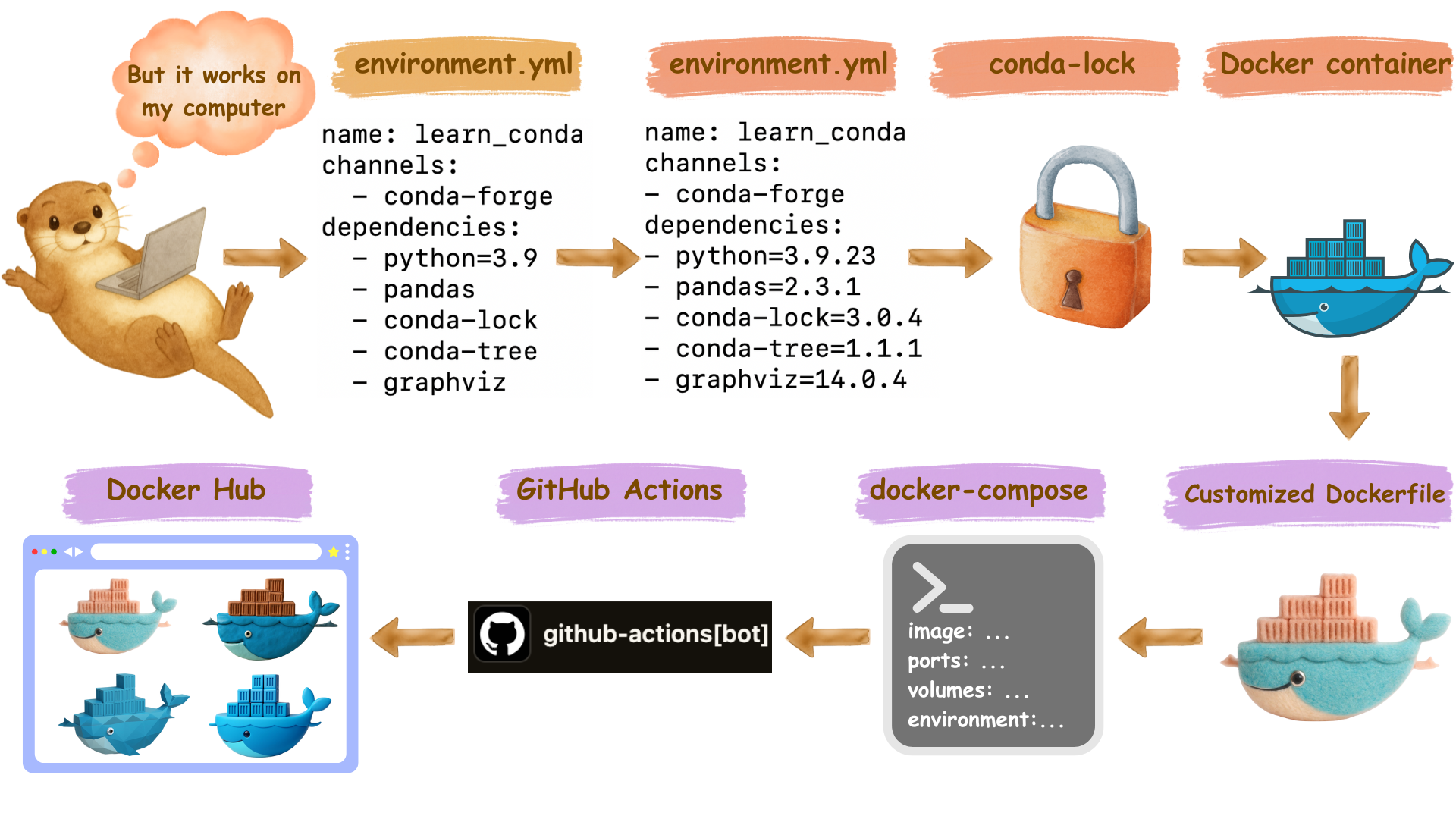
Image generated by OpenAI GPT-5 and Canva
Docker image, data, code: all in one place?
- NO 🙅♀️
- 🐳 Docker image ➡️ Docker Hub
- 📜 Code ➡️ GitHub repository
- 📊 Data (small) ➡️ GitHub repository
- 📊 Data (large) ➡️ Cloud storage (e.g., AWS S3); Zenodo; Borealis Dataverse
Real-world example: Nature
- If you ever submit a paper to Nature journals, you will be asked to upload your code & data to Code Ocean

Something to look forward to at the end of DSCI 522…
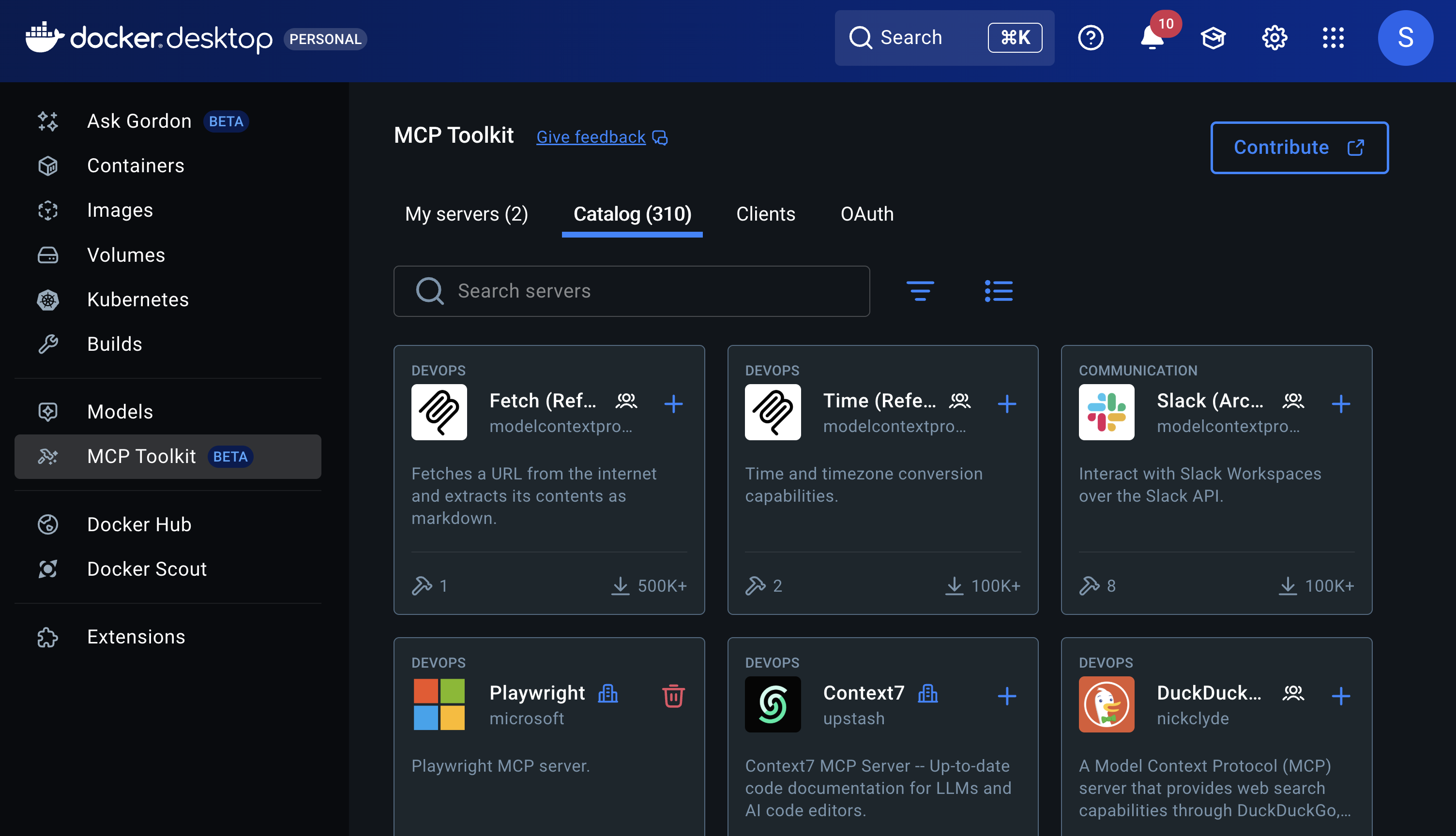
- 🤖 AI agents and fully automated data science workflows using Model Context Protocols (MCPs)
- 🐳 Most MCP servers are built using Docker containers
🎊 That’s all for Docker for now
- Docker Cheatsheet is available here
Today’s topic: Non-interactive scripts 📜
Early Prep:
- Clone the repository:
- If you already cloned this repository last time, please
git pullto get the latest updates.
- Pull the docker image:
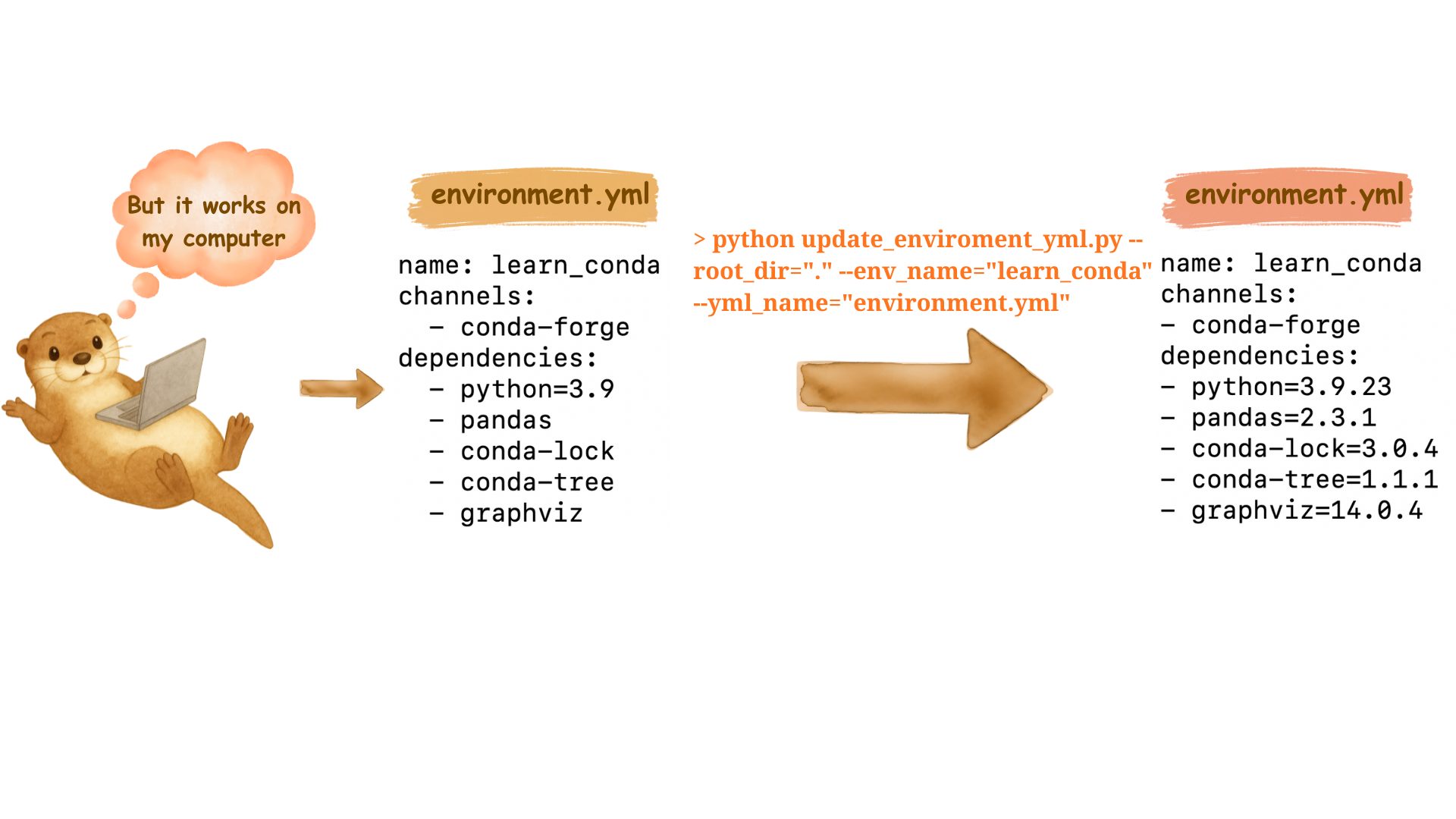
You have already been using scripts!
- GitHub repo: append_version_to_environment_yml
python update_enviroment_yml.py --root_dir="." --env_name="ai_env" --yml_name="environment.yml"
What is a script?
- A script is a plain text file that contains sequence of commands (e.g., written in R or Python). It is usually executed from top to bottom from the command line.
- Example: update_environment_yml.py
Read-eval-print-loop (REPL) framework (i.e., interactive mode)
- Read-eval-print-loop (REPL) framework is when the machine reads the input, evalutes/executes them through functions, print out the result to the user. 👀 –> ✅ –> 🖨️
- REPL example:
- Run code in console for R & Python
- Run code in cells of Jupyter Notebook
What are the problems with Jupyter Notebook?
- 🤔 Example 1: What if we turn update_environment_yml.py into a Jupyter Notebook and always run cell by cell?
- 😵💫 Example 2: A jupyter notebook to analyze images output by text-to-image generative models. Old commit history in November 2024 for this repository. My Problems are:
- 4800 images generated
- 25 visualization plots generated
What are the problems with Jupyter Notebook?
- 😵 Do you want to show every single step of your analysis in one single file to your reader?
- Remember my 5000-line R code that you roasted? 🔥
💡 What are the benefits of using scripts?
- Abstraction: Hide the complexity of the code from the user
- Reusability: The script can be reused by others
- e.g., I moved the update_environment_yml.py script out from my original repository and shared it with you
- Efficiency: Jupyter Notebook runs in linear fashion, while the script can be run in parallel
- Automation: Scripts can be used with other tools (e.g., GNU Make) to automate the entire workflow
- Ease of use: The script can be run with a single command
- Ease of debugging: Modular code is easier to debug
🌟 Read-eval-print-loop (REPL) framework VS Scripts
| Aspect | REPL (e.g., Jupyter Notebook) | Scripts |
|---|---|---|
| Execution | Interactive, line-by-line or cell-by-cell | Batch mode, top to bottom |
| Best for | Solving small problems, developing code, exploratory analysis | Automation, production workflows, reproducible pipelines |
| Advantages | Immediate feedback, easy for small problems and experiments | Efficiency, automation, reusability, reproducibility |
| Examples | R/Python console, Jupyter Notebook cells | .py, .R files run from command line |
| Complexity | Can become messy with large analyses | Better for complex, modular workflows |
| Debugging | Harder with non-linear execution | Easier with linear, modular code |
🏄🏻♀️ Let’s dive into python scripts!
- Scan through the update_environment_yml.py script and discuss the following questions with your neighbor:
- What is the structure of this script?
- Where are the documentation comments?
- What is the structure and style of the documentation?
- Where is the packages get imported?
- What is the purpose of
@click.option()? - Why do we need
if __name__ == "__main__":at the end?
Example python script organization
Docstring: Google Style
Docstring: Numpy Style
Why does docstring style matter?
Readability: Your collaborators, future users, and future you will thank you for writing clear and concise docstrings. 🙏
Good docstring should be both human-readable and machine-readable.
Python Example:
R
roxygen2Documentation Example:
Let’s use click package in Python to parse command line arguments
Create a new python script called otter_greeting.py:
Run the script
Let’s use click package in Python to parse command line arguments
Let’s use options instead of arguments to parse command line arguments:
import click

@click.command()
@click.option('--count', type=int, default=1, help='Number of greetings.')
@click.option('--name', type=str, prompt='Your name', help='The person to greet.')
def hello(count, name):
    """Simple program that greets NAME for a total of COUNT times."""
    for x in range(count):
        click.echo(f"🦦: `Nice to meet you, {name}!`")

if __name__ == '__main__':
    hello()
Run the script
🦦 Greet otters using click!
"""Otter Greeting Generator

This script allows you to greet otters with different levels of enthusiasm.
"""

import click

@click.command()
@click.option('--count', default=1, help='Number of otter greetings.')
@click.option('--name', prompt='Your name', help='The person to greet.')
@click.option('--enthusiasm', type=click.Choice(['low', 'medium', 'high']),
              default='medium', help='How enthusiastic should the otters be?')
def greet_otters(count, name, enthusiasm):
    """ Otter greeting generator

    Simple program that has adorable otters greet NAME for COUNT times. 🦦

    Parameters
    ----------
    count : int
        Number of otter greetings to display. Must be a positive integer.
        Default is 1.
    name : str
        The name of the person to greet. Will be prompted if not provided
        via command line.
    enthusiasm : {'low', 'medium', 'high'}
        The enthusiasm level of the otter greetings:
        - 'low': Simple, calm greeting
        - 'medium': Friendly greeting with some emojis
        - 'high': Very excited greeting with lots of emojis and caps
        Default is 'medium'.

    Returns
    -------
    None
        Outputs greetings directly to the console using click.echo().

    Examples
    --------
    Run from command line:

    >>> python otter_greeting.py --name "Oyster" --count 3 --enthusiasm high

    This will display 3 highly enthusiastic otter greetings for Oyster.
    """
    # Different enthusiasm levels
    emojis = {
        'low': '🦦',
        'medium': '🦦✨',
        'high': '🦦🎉🌊'
    }

    messages = {
        'low': f"hello {name}.",
        'medium': f"Hello {name}! 🌊",
        'high': f"HELLO {name.upper()}!!! Who is that lovely, amazing, genius friend over there?? The otters are SO excited to see you! 🎊"
    }

    click.echo(f"\n{emojis[enthusiasm]} Otter Greetings Incoming! {emojis[enthusiasm]}\n")

    for i in range(count):
        click.echo(f"  Otter #{i+1}: {messages[enthusiasm]}")

    click.echo(f"\n🦦 You've been greeted by {count} friendly otter(s)! 🦦\n")

if __name__ == '__main__':
    greet_otters()
Run the script
Tips for python scripts
Note
if __name__ == "__main__":lets you source the other functions in the script without running the main function.clickcommands need to be placed right above the main function.
Example:
# import libraries/packages
import click

# parse/define command line arguments below
# define main function
@click.command()
@click.argument('num1', type=int)
@click.argument('num2', type=int)
def main(num1, num2):
    """Simple program that adds two numbers."""
    result = num1 + num2
    click.echo(f"The sum of {num1} and {num2} is {result}")

# call main function
if __name__ == '__main__':
    main()
Command line for R: docopt package
Example:
"This script greets you with adorable otters! 🦦

Usage: greet_otters.R --name=<name> [--count=<count>]

Options:
--name=<name>      Your name (the person to greet)
--count=<count>    Number of otter greetings [default: 1]
" -> doc

library(docopt)

opt <- docopt(doc)

main <- function(name, count) {
  # Convert count to numeric (docopt returns strings)
  count <- as.numeric(count)

  # Generate otter greetings
  cat("\n🦦 Otter Greetings Incoming! 🦦\n\n")

  for (i in 1:count) {
    cat(paste0("  Otter #", i, ": Hello ", name, "! 🌊\n"))
  }

  cat(paste0("\n🦦 You've been greeted by ", count, " friendly otter(s)! 🦦\n\n"))
}

main(opt$name, opt$count)
More example of command line in R
Saving model objects in Python: pickle
Saving model objects in R: RDS