
💻 Local R Studio Setup Guide#
For offline adventures or advanced users who want R installed on their computer
🌟 When to Use Local Setup#
Choose local installation if:
🏠 You want to code without internet
🚀 You’re planning to continue R programming after camp
💻 Your family prefers local software installations
🔧 You’re comfortable with software installation
Note: We recommend Posit Cloud for most campers as it’s easier to set up!
📋 Step-by-Step Installation#
Step 1: Install R#
🌐 Go to https://cran.r-project.org/
🖱️ Click on your operating system:
Windows: “Download R for Windows” → “base” → “Download R-4.x.x”
Mac: “Download R for macOS” → Download R based on your Mac type (newer Mac produced after 2000 uses Apple silicon (M1,2,..) chip, so select
R-4.x.x-arm64.pkg. Older Mac uses Intel chip, so selectR-4.x.x-x86_64.pkg)Linux: “Download R for Linux” → Choose your distribution
📥 Download and run the installer
✅ Follow the installation wizard (accept default settings)
Step 2: Install RStudio#
📥 On your right hand side, click “Download RStudio Desktop” (FREE version)
📦 Install RStudio (it will automatically find your R installation)
🚀 Launch RStudio
Step 3: Test Your Installation#
🖥️ Open RStudio
💬 In the Console (bottom left), type:
print("Hello, magical data world!")
⏎ Press Enter
🎉 You should see your message appear!
Step 4: Install Required Packages#
Copy and paste this code into the Console:
# Install packages for our camp
install.packages(c(
  "ggplot2",      # Beautiful graphs
  "dplyr",        # Data wrangling
  "gridExtra"     # Visualization grid
  "tidymodels"    # Machine learning models
  "infer"         # Sampling
  "knitr",        # Document creation
  "rmarkdown"     # Reports and presentations
  "kknn"
))
This might take 5-10 minutes to download and install.
🎯 RStudio Interface Guide#
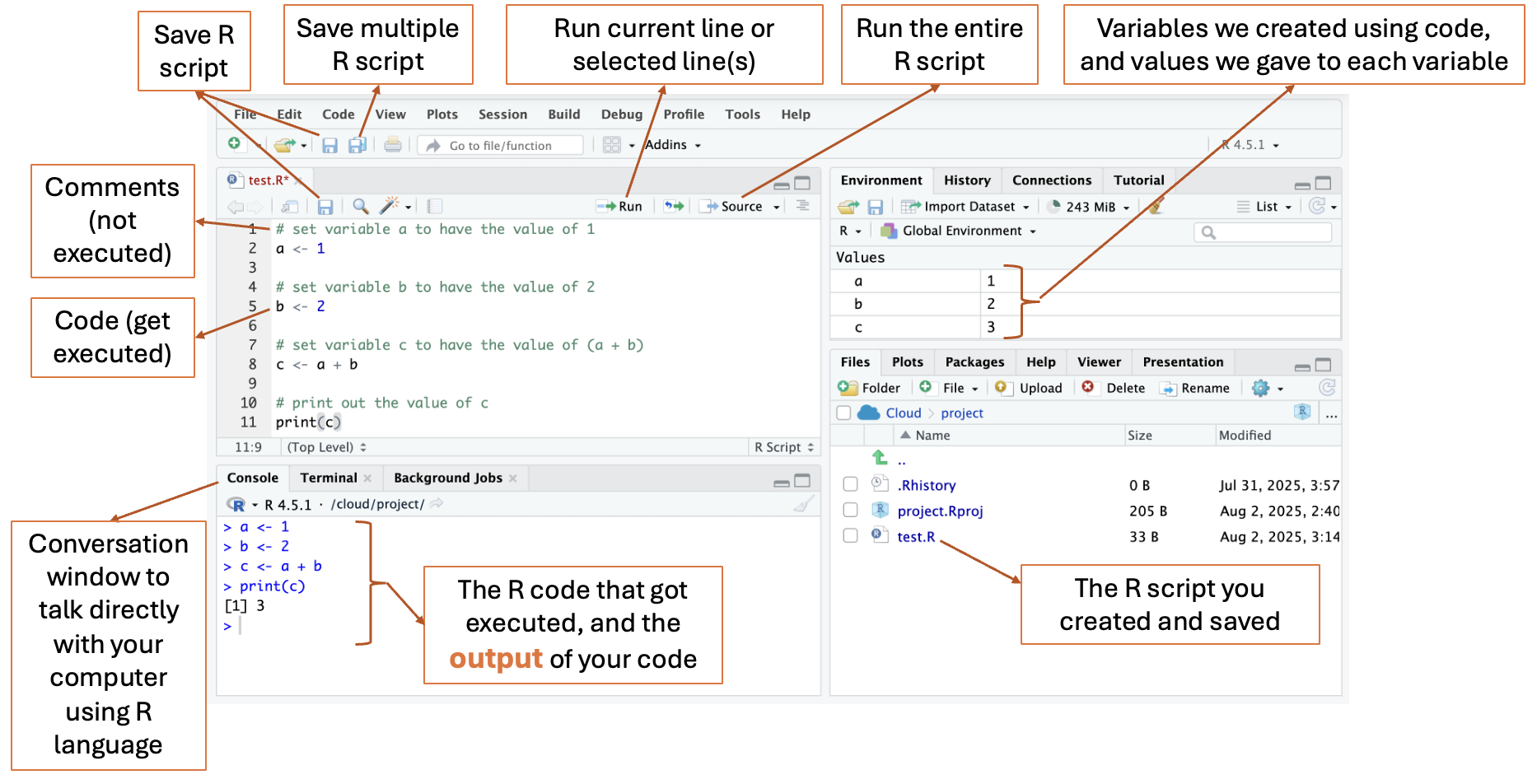
The Four Panels#
📝 Editor (top left): Your magical scroll for writing longer R spells (code).
🔮 Console (bottom left): Cast spells (code) here and see the magic happen instantly!
🌳 Environment (top right): All the magical creatures (variables, data) you create will live here.
🗺️ Files & Plots (bottom right): Find your project files and see the beautiful plots/graphs you create.
🆘 Troubleshooting#
“R won’t install”#
✅ Make sure you have administrator permissions
✅ Close all other programs during installation
✅ Try downloading again (file might be corrupted)
✅ Ask a parent/guardian for help with permissions
“RStudio can’t find R”#
✅ Install R first, then RStudio
✅ Make sure both are the same “bit version” (32-bit or 64-bit)
✅ Restart your computer after installing R
“Packages won’t install”#
✅ Check your internet connection
✅ Try installing one package at a time
✅ Ask your instructor for help
“I’m getting error messages”#
✅ Don’t panic, errors are how we learn
✅ Read the error message carefully
✅ Check for typos (R is case-sensitive)
✅ Ask Claude AI or your instructor for help
🔄 Switching Between Local and Cloud#
Good news! You can use both:
💻 Local RStudio for home practice and offline work
☁️ Posit Cloud for camp activities and collaboration
📤 Export projects from cloud to local when camp ends
📥 Import projects from local to cloud if needed